A Microsoft Dell Glitch Inspires some Creative Linux GOS Work
A bit of Dell and Microsoft BashingThis morning when I arrived at work, my computer had installed a Microsoft Windows XP update (for Office 2007, which isnt even installed on my PC - its running 2003) and rebooted. The result was that my screen was now partially blurry. Something had screwed around with the video drivers. I wasnt sure if it was a problem with the video card or the monitor but theres an easy way to find out. I booted from a handy Ubuntu boot CD (my trusty Bart PE didnt seem to work on the DELL).
These boot CDs are brilliant. They let you get work done without having to install an operating system. In my case, I was able to connect to the network and open some large documents to assure myself that the monitor blurriness was gone. When I booted back into Windows, the blur came back too.
I called DELL and explained my actions and was given the extremely helpful advice (NOT), that since it was obviously not a monitor or video card problem, I could either put in the DELL System Recovery CD, or Reload the Operating System manually. The analogy of rebuilding your car because you find a pot hole in the road springs to mind. I dont know where DELL get their technicians.
A Unique Temporary FixWell, I was in a hurry but I wasnt about to tolerate the blur either. I grabbed a PC that I found lying around and put in one of my Random OS CDs. (If you have to do this, you might as well have a bit of fun). In this case, it was the Google Operating System (GOS) which is based on GNOME Linux. My terminology is probably all wrong here because I dont know much about Linux - but thats one of the points of this post. The solution was quick and easy - even for a dummy like me.
I booted into GOS, then clicked the Install Icon on the desktop. After a few questions about my Country, Language, Machine Name and after selecting a user name and password, it started copying files. Eight minutes later (on a very old machine), I was booting smoothly into my new Operating System, already preloaded with goodies. The system informed me that there were updates - 279 (332.4 MB) to be exact. Since I was going off to get a coffee, I figured that Id let it run. It took 40 minutes, but most of that was downloading time.
The next step was to remote desktop my windows PC and see if it came out blurry.
Getting a Remote DesktopThis was a bit tricky at first because the Google OS ships with a "Remote Desktop" already installed. Unfortunately, its for VNC (which requires additional software on your PC). I wanted a Native Windows remote desktop. The answer was surprisingly simple.
- All you have to do is click (GOS - which is the GOS equivalent of the Start menu), then choose Add/Remove...
- A dialog box appears and you type Remote Desktop to search for it. The "windows" remote desktop is called Terminal Server Client.
- Simply tick the empty checkbox to the left of it and click Install.
- Everything else is automatic.
- After the installation, you can start the utility by clicking GOS, then Internet, then Terminal Server Client.
- In the computer name, I put the IP Address of my Windows computer and in the username, password and domain boxes, I put my normal logon credentials. Thats it. It all just worked.
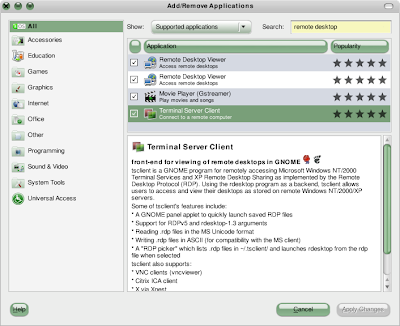
Of course, the screen was a bit small, being 640 x 480 but I soon discovered that if I clicked on the other tabs in the Terminal Server Client, I could set some sensible defaults. Now I had my Windows system back, and no blurry screen. That meant that I could continue work until I get around to resolving that other problem.
Notes 8.5 on the Google Operating SystemIts a perverse thing that I cant help myself. Im always interested in what Notes can do. I decided to install the notes client onto GOS. It worked first time, so here are the instructions.
- Put in your CD where youve saved your carefully downloaded Linux version of the IBM Lotus Notes 8.5 Client.
- Copy the file C1W0TEN.TAR to your desktop (I remember from ubuntu that it didnt like running from CD).
- Double click on the file and Extract IBM_lotus_notes - 8.5.i586.deb to the desktop
- Double click this file and it should launch into Installer.
- As usual youll be prompted for your administrator password but then the software will install.
- To launch the software, click GOS, then Office, then Lotus Notes 8.5. Of course, youll have to go through the usual setup routine, and youll need your ID File but most of us can do those steps in our sleep.
After that, it should just work. Im impressed. Chalk up another tested OS for Notes.
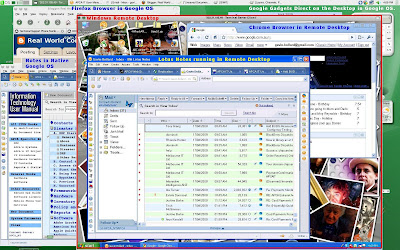
And heres an annotated picture of it all working happily together...