Showing posts with label linux. Show all posts

Saturday, June 24, 2017

Posted by beni in , , , , , | June 24, 2017

91 Super Computers Powered By Linux


The Top 500 Project lists the 500 fastest supercomputers in the world biannually. They have released this year�s list and in terms of the operating system used it is Linux all the way with more than 90% of the supercomputers running on Linux.

It is not surprising that Linux is generally preferred in supercomputers but the percentage (91%) is surprising.

Hers is a diagrammatic representation of the data. The larger boxes represents more powerful systems.

image

You can view this diagram and others like country-wise breakup , manufature-wise breakup etc in an interactive form at http://news.bbc.co.uk/2/hi/technology/10187248.stm.

In case you want the actual numerical breakup of the Operating System Family, here it is:

image

And here is the Operating System breakdown:

image[3]
Posted by beni in , , , , , | June 24, 2017

5 Best Video Players for Linux


I have compiled some of the best free media players for Linux OS to play almost any video, audio formats you will ever need as a Linux user.

VLC Player

VLC media player is a cross-platform open-source multimedia framework, player and server. VLC media player is a highly portable multimedia player and multimedia framework capable of reading most audio and video formats (MPEG-2, MPEG-4, H.264, DivX, MPEG-1, mp3, ogg, aac ...) as well as DVDs, Audio CDs VCDs, and various streaming protocols. See the full features list. It can also be used as a media converter or a server to stream in unicast or multicast in IPv4 or IPv6 on networks.

Download VLC Player

Xine

xine is a free multimedia player. It plays back CDs, DVDs, and VCDs. It also decodes multimedia files like AVI, MOV, WMV, and MP3 from local disk drives, and displays multimedia streamed over the Internet. It interprets many of the most common multimedia formats available � and some of the most uncommon formats, too.

Download Xine

Totem

Totem is the official movie player of the GNOME desktop environment based on GStreamer. It features a playlist, a full-screen mode, seek and volume controls, as well as keyboard navigation. It comes with added functionality such as: Video thumbnailer for the file manager, Nautilus properties tab, Mozilla (Firefox) plugin to view movies inside your browser (in development), Webcam utility (in development) and more.

Download Totem

Helix Player

The Helix Player is an open source media player for Linux, Solaris, and Symbian based on the Helix DNA Client media engine. More operating system versions are currently in development.

Download Helix Player

Real Player

RealPlayer for Linux allows you to play more video, including popular Windows Media files, RealMedia files and more. Get instant access to your favorite songs or video. Easily create, save, edit and manage different playlists for any event or mood. Updated multi-channel stereo sound allows you to enjoy 5-channel audio plus a dedicated sub-woofer channel for streaming or playback through either your ALSA or OSS sound system. Need to take a break from a live stream? Just click pause. Perfect Play automatically buffers streaming content. So you can pause, rewind and fast-forward through live broadcasts without missing a thing.

Download RealPlayer for Linux


updated:
MPlayer

MPlayer is a movie player which runs on many systems. It plays most MPEG/VOB, AVI, Ogg/OGM, VIVO, ASF/WMA/WMV, QT/MOV/MP4, RealMedia, Matroska, NUT, NuppelVideo, FLI, YUV4MPEG, FILM, RoQ, PVA files, supported by many native, XAnim, and Win32 DLL codecs. You can watch VideoCD, SVCD, DVD, 3ivx, DivX 3/4/5, WMV and even H.264 movies. Another great feature of MPlayer is the wide range of supported output drivers. It works with X11, Xv, DGA, OpenGL, SVGAlib, fbdev, AAlib, DirectFB, but you can use GGI, SDL (and this way all their drivers), VESA (on every VESA compatible card, even without X11!) and some low level card-specific drivers (for Matrox, 3Dfx and ATI), too! Most of them support software or hardware scaling, so you can enjoy movies in fullscreen. MPlayer supports displaying through some hardware MPEG decoder boards, such as the Siemens DVB, DXR2 and DXR3/Hollywood+. MPlayer has an onscreen display (OSD) for status information, nice big antialiased shaded subtitles and visual feedback for keyboard controls. European/ISO 8859-1,2 (Hungarian, English, Czech, etc), Cyrillic and Korean fonts are supported along with 12 subtitle formats (MicroDVD, SubRip, OGM, SubViewer, Sami, VPlayer, RT, SSA, AQTitle, JACOsub, PJS and our own: MPsub). DVD subtitles (SPU streams, VOBsub and Closed Captions) are supported as well.

mplayer

Download MPlayer

So, whats your favorite media player?

Thursday, June 22, 2017

Posted by beni in , , , , , , , , | June 22, 2017

A Casual guide to some commonly used Linux Commands


A CASUAL GUIDE TO SOME COMMONLY USED LINUX COMMANDS

(Part 1)

Through this document i try to explain some of the commonly used commands under linux and their basic use In this first part of series we cover ls,cat,arch,bzip2,gzip,tar,pwd,more,mpg123


1. cat : ( concatenate)


This command can be used for diplaying content of a file on the console, combining two files into a single file , or appending content of one or more files into a single file commonly.


cat v1 : This statement would display the file named v1 on the console

cat v1 v2 v3 > v4 This statement would combine the content of textfile v1,v2,v3 and create a new file v4 having all the content of three files.


cat v4 >> v5 This statement would append v4 file at the end of file v5. To end the statement type (Ctrl + D (EOF))

cat > filename << STOP This statement would create a filenamed filename at the console and accept input from the user for the file , the file is ended(terminated ) on pressing Ctrl + D.


2. arch

arch

The command would print the machine architecture to the standard outpit (console)

Example :- On my Pentium M-1.4 ghz laptop it printed

i686


3. ls


The ls command lists the files at command line and has a number of options for displaying the file at the command line , the manpage on ls is as huge as huge gets . Some important options while ls are : -

ls command normally dosent display the hidden files and folders the one starting with . when used normally however if you want to display the hidden files and folder it can be done by using the -a option .


ls -a : Displays all files and folders including the hidden one


The above command displays current directory and parent director by ./ and ../ however if you want to avoid displaying this use -A option instead of -a option.


ls -S : the -S option displays the file list in a sorted fashion with the biggest sized file displayed first


ls -sS : the -s option displays file size before the filename combined with -S option it displays a sorted list of files currently in directory with the filesize infront of the filename.


ls -Sr : the -r option combined with -S displays the sorted list of files in the current directory with the smallest sized file displayed first.

ls -sSh : the command displays the sorted list of files in the directory with the file size displayed in a more understandable fashion.

ls -F : this command displays the list of files and directory with directories ending with (/) , executable files with (*) , Symbolic links with ( @)

ls -l : this command displays the file list with additional information like size,date (editited ,modified ) etc

ls -t: displays the direvtory in the order of their age with youngest directory displayed first adding -r tag could reverse the order.

4. gzip (GNU Zip)


gzip can be used for compressing a single file , it is not meant for compressing entire directories as other file formats do . The default extension used bu gzip archives is (.gz) .

gzip filename.ext would create a file name filename.gz and replace the existing filename.ext file with filename.ext.gz file which is compressed gzip archive , the gzip command retains the files attributes the modification,time stamp, access etc.

The compression level of the file can be varied by using options from 1 to 9 while compressing a file

gzip -1 filename.ext would compress the file quicker but with less compression.

gzip -9 filename.ext would compress the file slower but with more compression.

the default compression level is 6.

The filesize of compressed gzip archive would depend on the orignal file format it would do well with a non - archived file such as txt,doc,bmp etc but would fair poorly with JPG , PNG etc which are already compressed by some algorithm.

The gzipped file can be decompressed by using the gzip -d or gunzip command at the command line.

the default file extension used by gzip archives is .gz if you want to use a different file extension it could be done by using the -S option
example : gzip -S .x filename.ext would create a archive by the name of filename.ext.x

5. tar ( Tape archiver )

The tar program combines a number of files and directory in a single file which then can be compressed using a gzip or bzip2 program to reduce its file size.

tar -cvf file.tar file1 file2 file3 file4 : This would create a tar archive combining the file1 file2 and file3 into a single file the archive have the same name as the file1 since we have specified the -f option which makes tar use the first option as the filename of the archive , -c tells the tar program to create a archive and -v option displays all the background information on the screen.

tar -cvf file.tar file1.tar file/ : This command would create a archive named file.tar with file1.tar and file subdirectory as the content of the archive .

tar -cvzf file.tar.gz file1 file2 file3 file/ : This command would create a tar file consisiting of the files and directory specified and then the file is compressed using the gzip program, to create a final archive file.tar.gz.

tar -cvjf file.tar.bz2 file1 file2 file3 file/ : This command would create a tar file consisiting of the files and directory specified and then the file is compressed using the bzip2 program, to create a final archive file.tar.bz2

tar -xvf file.tar : This command would extract all the files contained in the tar file file.tar

tar -xvjf file.tar.bz2 : This command would extract all the files contained in the file file.tar.bz2 , it would first call the bzip2 program to extract the file.tar and the call tar to extract the file.tar and its conetent.

tar -xvzf file.tar.gz : This command would extract all the files contained in the file.tar.gz , it would first call the gzip program to extract the file.tar and then call tar to extract file.tar and its content.

If you have created the file.tar but want to add some file(s) later it can be done using the following command and using the -rf option .
tar -rf file.tar file(s)


6. bzip2

The bzip2 is similar to gzip program but compresses file better and more effectively as compared to gzip program . The default extension used by bzip2 program is (.bz2) , the usage of bzip2 is very similar to the gzip program but has some additional options , which are described here .

bzip2 -k filename.ext : This commmand would create a archive of the filename.ext but would also keep a copy of the orignal file unlike gzip which replaces existing file with the the new archive file.

the bzip2 program also has different compression level ranging from 1 -least to 9-maximum . which can be set by using syntax like : bzip2 -1 filename.ext

bzip2 archives can be extracted by using the bzip2 -d option or by using the program bunzip2 .

7. More

more allows one to view text file in the console with abilitty to scroll the file at shell. Syntax for using more is very simple .

To open a file type

more filename

or

more -s filename : this command shrinks multiple blank lines into a single line allowing easy modifcation of file.

some of the keyboard shortcuts are : -

(=) : This cause the current pagenumber to be displayed on the screen.

(Shift + (F)) : This causes to display the filename and path with the line number in the window.


(Q) : Quits the program


(B) : Takes the display one page back .


(v) : This would launch the default text editor which is vi allowing editing of the file the default text editor can be changed by changing the enviornmental variable EDITOR/VISUAL.


(d) : this scrolls the the displayed the file by default 11 lines which could be changed.


8. mpg123 / mpg321


mpg123 is command line based audio player that forms the backbone of number of graphically available Audio players , it is one of the most efficient player on the Linux platform and can play mp3 files on as low hardware specs as a 120Mhz Pentium Processor based computer . A similar command line application is mpg321 that can be used for playing mp3 files.


mpg123 or mpg321 file name - To play mp3 file

Ctrl + C - This skips to next track

Typing Ctrl + C Twice - quits the application

mpg123 -z *.mp3 : - Command would play all the mp3 files in the directory with a shuffled play-list.


mpg123 -w filename.wav filename.mp3 :- This command would convert the mp3 file to wav file , whic can then be used for burning on to cd to make audio cd.


However if your audio files/file is located in some location in sub-folders and u dont know exact location then following command can be used

mpg123 $ (find -name "Filename")

pwd

pwd

This command displays the full path of current working directory.

(Incomplete : Due to lack of time i would complete this guide later )
Posted by beni in , , , , | June 22, 2017

9 Great Linux XFCE Themes


XFCE4. It�s everyone�s favorite lightweight desktop environment. This desktop environment has been around for quite a while. For much of the time that this desktop has been around, it hasn�t exactly looked the greatest. The default look for XFCE is frankly not that great.
Since the XFCE Desktop is in dire need of a facelift, we decided to go out and find nine really great themes for XFCE4. Check them out below!
Note: the instructions to install each one of these themes are located on the page in which you downloaded them from.
Axe theme for XFCE4.
Not all of the themes on this list are full themes. The XFCE4 desktop is an interesting one. You can theme the window manager and the panel independently. Axe is one of the many window manager themes in this list.
Axe is a clean and really minimal window manager theme. When it�s not in focus, the entire window is transparent which is a really cool effect. Want a clean, simple Xfce window manager theme? Check out this one.
Tango theme for XFCE4.
A lot of XFCE4�s window managers that come pre-installed are unimpressive. They�re all old-looking and frankly just not something visually appealing on any level. Tango is an XFCE WM theme pack that hopes to change that.
It�s an elegant, colorful and minimalist approach to window themes. It also sort of reminds me of the Windows 8 window manager. Are you in search of a decent-looking XFCE window manager theme? Tango might be for you.


Numix Holo is a pleasant re-spin of the Numix GTK theme. The creator of this theme has substituted the famous �Numix Orange� color scheme for a light blue Android Jelly Bean-inspired setup. If you love Numix, but also prefer blue over orange, definitely check out this theme.
Ambience theme for XFCE4.
Some people love the default look of Ubuntu. Others don�t. Ambiance for the XFCE desktop is a theme for those looking to make their XFCE session more like Ubuntu. If you think the Ambiance style suits you, this should be your first stop.
Glare theme for XFCE4.
Glare is a simple theme for the XFCE4 desktop environment. It doesn�t have a whole lot going for it in terms of eye candy, but that�s not necessarily a terrible thing. Sometimes its hard to find a very simple theme with no frills, shadows or anything like that. If you�re in search of a simple look for XFCE4, you might want to check out this theme.
Macbuntu theme for XFCE4.
Macbuntu is a suitable XFCE4 theme for those who want to turn their desktop into something very close to OS X. This theme isn�t 100% similar to the way the Mac looks, but it most certainly is very reminiscent of it. Searching for an Apple-like theme for your XFCE desktop? Try out Macbuntu.
Rele theme for XFCE4.
There certainly isn�t a shortage of dark themes. It�s hard to browse xfce-look.org and not run into more than twenty-five dark themes. Still, if dark is what you want, Rele is one of the best out there. The theme uses the darker colors in a really nice way and everything is really easy to read (which I can�t say about some other black/dark themes out there). Are black themes your thing? If so, you might want to install Rele.
XFWM KDE4.8 Oxygen theme for XFCE4.
It�s hard to deny that the KDE desktop environment has it right when it comes to their Oxygen theme. Honestly, it�s one of the better default themes out there for Linux. Are you a fan of the Oxygen theme like me? If so, install XFWM KDE4.8 Oxygen.
Win8-FirstTry theme for XFCE4.
Some Linux users love the way Windows 8/8.1 looks. No this isn�t a joke! There are dozens of Windows themes for Linux desktops. For those on XFCE, the Win8-FirstTry theme is a good place to start out. Be warned, the creator of this theme said it�s his first shot at a theme, so there might be a few discrepancies here or there. Still, if you want your desktop environment to look like Windows 8.1, you should give this theme a go.
XFCE4 is a great desktop environment. Overwhelmingly, it�s the most popular lightweight desktop out there. That being said, it�s not exactly the best-looking. The overall design of XFCE4 seems to be stuck in the mid-90s/early 2000s. I hope that with the help of this list you�ll be able to take your existing XFCE desktop and make it a little better looking.

Wednesday, June 21, 2017

Posted by beni in , , , , , , , , , , , | June 21, 2017

7 Apps That Prove You Don’t Need Adobe Creative Suite on Linux


People have been asking Adobe to make Creative Suite available on Linux for several years now, but Adobe has been adamant about its answer: no. Why not? Most likely because the market share is too small to be worth the effort.
But the demographic is there. The overlap between �Linux users� and �creative users� is larger than many of us would expect, and many of them have been dying for a Linux Creative Suite for years.
The good news is that now, in 2016, viable options do exist.
Between all of the Adobe Creative products currently available, most of them have usable Linux alternatives. And while you won�t be able to use the Creative Cloud mobile apps with them, they�re still worth checking.

For Photoshop: GIMP or Krita

�Photoshop alternatives for Linux� is unsurprisingly one of the most common search queries among first-time Linux users. And while GIMP was the go-to answer for many years, that�s kind of changing now.


linux-creative-suite-gimp


Not that there�s anything wrong with GIMP. In fact, as far as needing a �Photoshop clone� on Linux, there�s nothing better. GIMP is powerful and feature-rich straight out of the box, and can be improved with third-party plugins.
So yes, even though GIMP has its flaws � such as the fact that it isn�t as intuitive or polished � it�s definitely the closest thing to Photoshop right now.


linux-creative-suite-krita


But there�s another program out there that�s been turning heads over the past few years. It�s called Krita and users are slowly abandoning GIMP and flocking over to it instead.
Krita is primarily a tool for digital painters and artists, so it�s only a good alternative to Photoshop if that�s the kind of work you do. But for things like logos, drawings, and artwork, Krita is more user-friendly.

For Lightroom: Darktable or RawTherapee

If you�re a photographer, Photoshop may not actually be the best application for your needs � you might want to use Lightroom instead. Unfortunately, neither are available for Linux, but there is a light at the end of the tunnel.
There are two free alternatives to Lightroom that are actually quite good. Neither is objectively better than the other, so we�ll recommend both and leave it up to you to decide which one you like more.


linux-creative-suite-darktable


The first is Darktable, which is the most oft-recommended program among Linux photographers. The interface is complex but it turns out good results. It�s also relatively light on resource usage, so better for older computers and weaker hardware.


linux-creative-suite-rawtherapee


The second is RawTherapee. The interface is simpler to learn and navigate, but lacks some features that you may need (such as selective editing with masks). RawTherapee is also slightly worse at managing large libraries with lots of photos.
Compare the feature set for Darktable with the feature set for RawTherapee to help make your decision a bit easier.

For Illustrator: Inkscape

Not many free applications can be considered as good as their paid counterparts, but Inkscape is one of them. In fact, it�s one of the best free alternatives to paid software out there. No need to spend money here.


linux-creative-suite-inkscape


Inkscape is what you should use if you want to create or edit vector graphics. Vector graphics are mathematical rather than pixel-based, so they can be printed at any resolution. They�re great for creating infographics, for example.
Although Inkscape suffers from a sub-par interface and lack of professional polish, it�s feature complete and certainly usable in a professional environment if needed.

For Premiere Pro: Lightworks or Kdenlive

Professional video editing has often been seen as an activity best suited for Macs, and only in the past decade have viable options come to light on Windows. But for Linux? Video editing can be a pain.


linux-creative-suite-lightworks


So if you can, we recommend paying for quality Linux software. Lightworks is very good � it was used to edit The Wolf of Wall Street, Pulp Fiction, Hugo, and more � but it�s also a bit costly at $438 (or $25 per month). However, you do get what you pay for.
Sure, Lightworks can be used for free, but there are restrictions. You can only export up to 720p and you lose a lot of quality-of-life features, such as timeline rendering, advanced project management, and Boris FX packages.
The paid version unlocks everything and can export up to 4K.


linux-creative-suite-kdenlive


If you want a video editor that�s completely free but still as professional as possible, Kdenlive is your best option. It�s open source, actively developed, and packed full of advanced features.

For Animate: Synfig

Animate is the program formerly known as Flash Pro, the vector animation program that was used in the past to create Flash animations. Now that the web has moved from Flash to HTML5, Adobe rebranded as Animate.


linux-creative-suite-synfig


Synfig has been the open source alternative to Adobe�s program since 2005, and is still the best choice for those who want to pursue 2D vector animation without handing over cash to Adobe. It�s free and in active development.
Synfig uses its own animation file format, but can export to AVI, MPG, GIF, SVG, PNG, and more. Despite the learning curve, you�ll be able to pick up the ropes quickly enough thanks to the user-contributed documentation and tutorials.

For Audition: Ardour or LMMS

Audition doesn�t get as much time in the limelight as Photoshop or Premiere Pro, but it�s a nifty piece of software that�s worthy of recognition. Formerly known as Cool Edit Pro, Audition is what you�d use to edit digital audio.
Audition is a digital audio workstation in the same line as Logic Pro on OS X. From what I know, Audition is used mainly by professional podcasters, but can be used for so much more, like recording and mixing your own music.


linux-creative-suite-ardour


Audacity is the go-to audio editor for most Linux users, but when Audacity isn�t enough, you should think about either Ardour or LMMS.
Ardour is the best DAW available on Linux right now. Not only does it have a clean and usable interface, but it�s packed full of advanced features. Very good and highly recommended.
It�s available for free but only produces audio up to 10 minutes long. You can unlock the full feature set by buying the full version, which has a �pay what you want� price tag. Seriously, you can buy it for as low as $1.


linux-creative-suite-lmms


LMMS, formerly known as Linux MultiMedia Studio, is another good option. This one is completely free but slightly inferior to Ardour. The interface is a bit harder to grasp and the learning curve is a bit steeper, but it�s still useful.
Check out the LMMS Showcase to see examples of tracks that have been made with LMMS.

For InDesign: Scribus

I don�t know of many people who do desktop publishing on Linux, but if you need an alternative to Adobe InDesign, rest assured that such an alternative does exist. It�s called Scribus.
Scribus can be used to create brochures, newsletters, posters, and even book layouts. It can also be used to create animated and interactive PDFs � the kind of stuff you�d expect from any desktop publishing program worth its salt.
It does have a few downsides though, such as the fact it can�t import or export InDesign files. Also, it�s not entirely polished and free of bugs, which can prove frustrating for heavy users. Fortunately, the Scribus documentation is pretty good.

The Ultimate Linux Creative Suite

If you absolutely need programs that are on par with Adobe, then save yourself the headache. Run a copy of Windows alongside Linux (either in a virtual machine or in a dual-boot setup) and get the Creative Cloud applications.
But if you�re okay with a bit of sacrifice here and there, these programs make for a passable Linux Creative Suite:
  • GIMP
  • Darktable
  • Inkscape
  • Lightworks
  • Synfig
  • Ardour
  • Scribus

Source: http://www.makeuseof.com/tag/7-apps-prove-dont-need-adobe-creative-suite-linux/

Thursday, June 15, 2017

Posted by beni in , , , , , , | June 15, 2017

6 Cool Internet Radio Players For Linux


There are quite a few Linux applications that can play Internet radio, but I thought Id make a list of some of the most interesting apps that focus on this.

The list includes lightweight Internet radio players, a fully fledged desktop application, a command line radio browser and player, as well as a GNOME Shell extension.


Radio Tray


Radio Tray Linux

Radio Tray is a minimalist Internet radio player that sits in the system tray (it also supports Ubuntus AppIndicator). The application is not new, but I couldnt make a Radio Players post without it, since its a great lightweight radio player.

Radio Tray comes with a list of built-in radio stations, and allows you to easily add new ones. Theres no GUI for the actual player - the application is controlled from the tray/AppIndicator or using the media keys.

Radio Tray features:
  • comes with a built-in radio station list (though since the application hasnt been updated in a long time, some no longer work);
  • plays most media formats (based on gstreamer libraries);
  • configurable radio stations with a GUI;
  • extensible by plugins (current plugins include: Sleep Timer, Notifications, MATE and GNOME Media Keys and History);

I didnt list the playlists formats supported by Radio Tray, because Im not sure if all those listed on its SourceForge page still work. Thats because the application doesnt seem actively maintained, with the latest commit dating back to January, 2015.

For instance, playing ASX streams didnt work in my test under Ubuntu 16.10, even though this is listed as supported on the Radio Tray page (playing ASX streams works with RadioTray Lite - see below).

There are also reports that Radio Tray pauses sometimes and it appears this hasnt been fixed although I didnt encounter the issue.

Radio Tray is most likely available in your Linux distribution official repositories. In Debian, Ubuntu or Linux Mint, you can install it by using the following command:
sudo apt install radiotray python-xdg

Without installing python-xdg, the application will fail to start (and its missing as a dependency in most Ubuntu versions, like 16.04).


Radio Tray Lite


Radio Tray Lite Linux

Because Radio Tray doesnt seem actively maintained, I searched for an alternative and stumbled upon Radio Tray Lite. According to its developer, this is a Radio Tray clone, rewritten in C++.

Just like Radio Tray, this application uses GStreamer, so it should play most media formats, however, it lacks some of the features available in the original Radio Tray, like plugins support (so no media keys support, etc.) or a GUI to add new radio stations.

Radio Tray Lite ships with a radio list and to add new radio stations you must edit a file. The application uses the same bookmarks.xml (radio station list) syntax as Radio Tray, so if you already have a custom one, you could use that instead of its built-in list.

To add new radio stations, edit the ~/.config/radiotray-lite/bookmarks.xml file.

I should also add that using Radio Tray Lite, I was able to play ASX steams (as opposed to the original Radio Tray running in Ubuntu 16.10). So if Radio Tray fails to play some streams, give Radio Tray Lite a try.

Radio Tray Lite features:
  • runs on a Linux system tray / AppIndicator;
  • desktop notifications;
  • minimalist user interface;
  • plays most media formats (it uses gstreamer);
  • supports PLS, M3U, ASX, RAM, XSPF playlists;

To install Radio Tray Lite in Ubuntu 16.10, 16.04 or 14.04 / Linux Mint 18.x or 17.x, you can use the main WebUpd8 PPA. To add the PPA and install the application, use the following commands:
sudo add-apt-repository ppa:nilarimogard/webupd8
sudo apt update
sudo apt install radiotray-lite
If you dont want to add the PPA, grab the deb from HERE.

For installing Radio Tray Lite in other Linux distributions, bug reports, etc., see its GitHub page.


Gradio


Gradio Linux

Gradio is a GTK3 application for discovering and listening to Internet radio stations.

Gradio features:
  • uses radio-browser.info for its built-in radio station list;
  • filter radio stations by language, country/state or tag (which includes genres, etc.), as well as most popular;
  • after finding a radio station you like, you can easily add it to your library by starring it;
  • MPRIS v2 support (integrates with the Ubuntu Sound Menu, GNOME Shell, etc.);
  • optional desktop notifications;
  • connection popover that displays the used codec, bitrate, channel mode, etc.;
  • includes options to resume playback on startup, close to tray, enable background playback, use dark design, etc.

Gradio is the most complete Internet radio player in this list, but also the most heavy on system resources. Its also the best for discovering new online radio stations thanks to its extensive radio station database and filters.

The application does lack a feature though: it doesnt allow adding your own custom radio stations from the application user interface. The radio station must exist in the radio-browser.info database to be able to play it.

Ubuntu 16.10 and 16.04 / Linux Mint 18.x users can install the latest Gradio by using its official PPA:
sudo add-apt-repository ppa:haecker-felix/gradio-daily
sudo apt update
sudo apt install gradio
If you dont want to add the PPA, grab the deb from HERE.

For how to install Gradio in other Linux distributions, bug reports, etc., see its GitHub page.


GNOME Shell Internet Radio extension


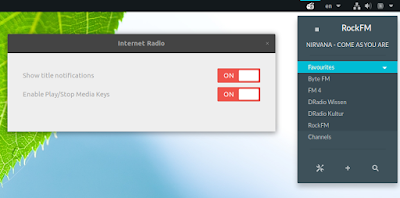
GNOME Shell Internet Radio extension

This may not be a stand-alone application, but its basically the Radio Tray equivalent for GNOME Shell, so I had to add it to this list.

GNOME Shell Internet Radio (or GNOME Shell Extension Radio) is a simple extension for listening to Internet radio streams, which supports GNOME Shell 3.18, 3.20 and 3.22.

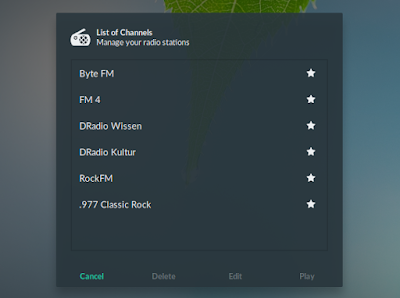
The extension only ships with 4 Internet radio stations by default, but it provides a built-in search for http://www.radio-browser.info (radio directory), so you can easily add new radio stations from within the extension user interface. You can also add your own radio stations:

GNOME Shell Internet Radio extension

GNOME Shell Internet Radio extension

GNOME Shell Internet Radio extension features:
  • manage (add/edit/remove) radio stations;
  • mark stations as favorite;
  • built-in online radio directory search (it uses https://www.radio-browser.info);
  • middle click to start/stop last played station;
  • support for multimedia keys;
    • Play / Stop
    • Next / Prev cycles through the channels list;
  • optional desktop notifications;
  • cyrillic tag support.

Install Internet Radio extension from the GNOME Extensions directory or from source, from GitHub.


Curseradio


cursesradio

A Linux application list, even a small one like this one, wouldnt be complete without a command line alternative.

Curseradio is a command line Internet Radio browser and player which uses a curses interface, and mpv for audio playback. The tool makes use of the TuneIn directory found at http://opml.radiotime.com/ for its radio station list.

Unfortunately Curseradio doesnt support adding your own radio stations, however, the built in list is quite extensive and provides radio stations for any taste. Furthermore, the TuneIn directory it uses has a Local Radio section which tries to list radio stations based on your location.

Curseradio features:
  • interactive curses interface with radio categories, currently playing and bitrate information;
  • keyboard shortcuts (see its GitHub page for a list);
  • extensive built-in radio station list (via http://opml.radiotime.com/), including local radio stations;
  • supports adding stations to favorites (press "f" to add it to favorites), for quick access.

To install Curseradio in Ubuntu 16.10, 16.04 or 14.04 / Linux Mint 18.x or 17.x, you can use the main WebUpd8 PPA. Add the PPA and install the application using the following commands:
sudo add-apt-repository ppa:nilarimogard/webupd8
sudo apt update
sudo apt install curseradio
If you dont want to add the PPA, grab the deb from HERE.

For installing Curseradio in other Linux distributions, grab the source from its GitHub repository.


Goodvibes (later addition)


Goodvibes Radio Player

Update: Ive added Goodvibes to the list (thanks to Kimme for the Goodvibes tip!).

Goodvibes is a lightweight Internet radio player that provides a GTK3 interface, can be launched without a GUI, and it features a command line client that can be used to control it.

By default, the application doesnt ship with a large list of Internet radio stations, but more can be easily added.

Goodvibes features:
  • MPRIS v2 support;
  • multimedia keys;
  • desktop notifications;
  • sleep inhibition when a radio is playing;
  • command line client to control the app;
  • supports most formats thanks to GStreamer;

Most of these are disabled by default (like notifications, multimedia keys, etc.), and you must enable them from the application preferences.

The application can be used without an interface by launching it with the "--without-ui" command line argument or select "Close UI" from its menu, and it can be controlled either via command line (using "goodvibes-client"), or from a MPRIS v2 interface, such as the Ubuntu Sound Menu, GNOME Shell System Menu, and so on:


To install Goodvibes in Ubuntu 16.04 or Linux Mint 18.x by using its PPA, use the following commands:
sudo add-apt-repository ppa:elboulangero/goodvibes
sudo apt update
sudo apt install goodvibes
If you dont want to add the PPA or youre using a newer Ubuntu version (I tested it in Ubuntu 16.10 and I didnt encounter any issues), download the deb from HERE.

Unfortunately Goodvibes is not available for Ubuntu 14.04 (or older) / Linux Mint 17.x because it requires GStreamer 1.0, which was not available when those were released.

Arch Linux users can install Goodvibes via AUR.

For how to build Goodvibes from source, bug reports, etc., see the Goodvibes GitHub page.

Thursday, June 8, 2017

Posted by beni in , , , , , , | June 08, 2017

7 Useful Commands For Ubuntu Linux Newbies


First off, let me say that I am not one of those terminal loving Linux fans. I think it is cool and all, but I tend to save the command line for things that either require doing a massive batch job, or when I need to do something really specific.
Other than that, I stick to the Gnome GUI, and work within the parameters that various menus offer me. That works for 99% of what I need done.
However, I have found a very few commands that I need on a reasonably regular basis. Since I tend to be somewhat command line averse, I figure Ill throw them out there, for those of you who are new Ubuntu (or other type of Linux users).
Without further adieu, here they are, in order of usefulness to me:
1. ps -A : This will show you a list of all running processes, along with displaying a process id number. This command is helpful, because it is necessary when you run command #2.
2. kill -9 [insert process id number] : This tells the program associated with the process id number to die instantly. For instance, if Amarok was running with a process id number of 8077, and it was hung, or not responding, you would open up a terminal and type: kill -9 8077 . That means "Dont ask me any questions, dont ask if I want to save my work. Close immediately. Do not pass Go, do not collect $200."
3. locate : locate is a very powerful search. Basically, open up a terminal, and issue the command: locate , along with any part of a filename you want to find. locate will give you a reading where any part of that text string appears, along with giving you the exact location of the file(s) in question.
4. lspci and lsusb : Okay, so there are really 8 commands, but these two are two sides of the same coing,so I am throwing them both in together, as a kind of bonus.
lscpi , when issued, gives back a list of everything connected to the PCI bus, along with your graphics card, and some other fun stuff.
If you are having driver issues, many times, the first thing that a help forum will ask you to do, is give them what lspci prints out. lsusb does the same thing, but gives you a rundown of your USB devices. While it may seem rather redundant, especially since you can already see what is connected to your pc, I assure you, it is not. Many times, the manufacturer of the PC, will use one of the built in USB hubs to attach the webcam, a card reader, or some other piece of built-in hardware.
5. pstree : Ever accidentally kill off a process, not knowing that it was being used by a program you wanted to keep up and running? pstree can solve many of these problems. Issuing the pstree command, shows all your processes in a "treed" hierarchy, meaning you can see what process goes with what program. A must-have.
6. ifconfig : While ifconfig will let you actually configure a device, most of the time, you will be typing it to get basic feedback on your networking devices. It is especially helpful when troubleshooting your wireless ethernet. Issue the command, and it gives you back your current ip address, MAC address, and a ton of other useful information. Good stuff.
7. chown : chown , or "change ownership", allows you to do exactly that, for any given file, at any given time. For instance, if you have a public computer, and you dont want just anyone to be able to access your file (diary.txt), then you would issue the command: chown root diary.txt (assuming permissions to view or edit are only available to the owner of the file) . This would give control of the file over to root, and require a password to view.
The only exception would be if you are running your PC, under the root user, in which case, you have far greater problems than someone reading your diary.
There are many other useful Linux commands that you will learn. Hopefully, these make your day a little easier, and your time using Linux more productive.
Enjoy...I have to go now...One more thing...
The fear of the Lord is the beginning of wisdom. No one who puts their in Him, need ever be ashamed.

Published At: Isnare.com Free Articles Directory - http://www.isnare.com/
Permanent Link: http://www.isnare.com/?aid=524287&ca=Computers+and+Technology

Thursday, June 1, 2017

Posted by beni in , , , , , , , , | June 01, 2017

9 Beautiful Alternatives To The Default Linux Icon Sets


Danny Stieben,On Linux

Some of the default icon sets that come with Linux distributions are just plain ugly. Have you ever looked at the default icon set for Gnome � the real one? While it works, it could look so much better. Thankfully, we can fix this rather easily. Here�s how you can switch icon sets, and which ones I recommend trying out.

How to Install

gnome tweak interface 9 Beautiful Alternatives To The Default Linux Icon Sets

To install an icon set, you�ll first want to install Gnome Tweak Tool, a utility that allows you to access more configurability settings. This will allow you to switch between installed icon sets. Next, find your desired icon set and download it. Extract the contents of the zip folder, and place them in /home/<user>/.icons. Different icon sets should be in their own folders within the .icons folder. If you can�t see the .icons folder, you�ll need to enable visibility of hidden files and folders. In Nautilus, you can do this by simply hitting Ctrl + H on your keyboard.Then, you can go to the Interface tab in Gnome Tweak Tool and switch to the icon set you want. The change should apply immediately.
If you�re a KDE user, you don�t have to install anything extra. Just go to System Settings �> Appearance �> Icons and choose the icon set you want.
There are loads of icon sets available, but which ones are good and worth trying out? Take a look at these 9 icon sets.

Moka

linuxicons moka 9 Beautiful Alternatives To The Default Linux Icon Sets

Moka is currently the hottest icon set available. It�s clean and very well designed � all icons have the same size and square shape with rounded corners. It�s also one of the more complete icon sets available, with a number of icons made for various third-party applications, and not just for generic items or default applications.

Faience/Faenza

linuxicons faience 9 Beautiful Alternatives To The Default Linux Icon Sets

Faience/Faenza are a pair of icon themes by developer tiheum that are also wildly popular, although their heyday was roughly around the time when Gnome Shell was first released. The design concepts are actually very similar to Moka�s, but this theme also includes darker themes that can fit in well with light desktop themes.

Awoken

linuxicons awoken 9 Beautiful Alternatives To The Default Linux Icon Sets

Awoken follows a completely different design concept that doesn�t use square icons for everything. Instead, Awoken first gained popularity from its original mono mode of icons. It has since evolved to include colored icons as well as dark and white themes. I think they look a little cartoony, but it�s not a bad thing � the icons are still cleanly designed.

Numix

linuxicons numix square 9 Beautiful Alternatives To The Default Linux Icon Sets
Numix goes back to the square icon concept, and offers some of the flattest icons around. The colors used in this one are also a bit brighter � sometimes intentional to add exaggerated effects. However, its simplicity is attractive.
linuxicons numix circle 9 Beautiful Alternatives To The Default Linux Icon Sets

Unlike other icon sets, you have a choice between square or circle icons. They look the same; only the shape is different. I welcome this option since (as you might already be able to tell) there�s an abundance of square icon sets.

Nitrux

linuxicons nitrux 9 Beautiful Alternatives To The Default Linux Icon Sets

The icons found in the Nitrux set also follow square design principles, but these look much more three-dimensional and glossy. Yet again, this set also has its own style that works great and gels well among itself.

Candy

linuxicons candy 9 Beautiful Alternatives To The Default Linux Icon Sets

If you like the type of icons that come with most distributions, but just don�t like their style, the Candy icon set is for you. Icons here aren�t all squares or circles, but rather just in the shape of whatever the icon depicts. It�s straightforward and not too fancy.

Elementary

linuxicons elementary 9 Beautiful Alternatives To The Default Linux Icon Sets

Elementary OS has been getting a ton of attention from my colleague Akshata, and the broader Linux community, over recent months. Part of the reason: it looks fantastic. The distribution�s icon set has something to do with that, so thankfully you can get it for your own Linux system without having to install Elementary OS. This one is similar in style to Candy, but it does come off as slightly more elegant. Or maybe that�s just the prestige talking.

Mac

linuxicons mac 9 Beautiful Alternatives To The Default Linux Icon Sets

You can�t deny that the icons in Mac OS X look pretty nice, so it�s no surprise that someone made an icon set based off of Apple�s operating system. This isn�t a perfect copy of the icons used in Mac OS X, but the inspiration is clear enough. If you like Apple�s icons, then this is a good icon set for you.

There you go! Those were nine great icon sets that you can try out with ease. Be sure to check out the installation instructions for the icon sets above � while my instructions at the beginning of this article apply to all Linux distributions, there are some icon sets that provide Ubuntu PPAs that make installation easier.
What�s your favorite icon set? What do you like most about it? Let us know in the comments!

Source: http://www.makeuseof.com/tag/9-beautiful-alternatives-default-linux-icons/

Sunday, May 28, 2017

Posted by beni in , , , , , , , , | May 28, 2017

5 Step How to Install LibreOffice on Linux Mint


5 Step How to Install LibreOffice on Linux Mint

5 Step How to Install LibreOffice on Linux Mint - LibreOffice is an application for office. The LibreOffice have potentiality like Microsoft Office. But LibreOffice are available for Linux Operating System. This software are distribution for Debian, Ubuntu or Deterative of Ubuntu (Xubuntu, Kubuntu, BlackBuntu, etc).

The features of LibreOffice is :

  • Application for Word processor which called Writter.
  • Application for presentation which called Impress.
  • Application for numeric processor which called Calc.
  • Application for database processor which called  Base.
  • Application for drawing which called Drawing.
  • And some feaures for working at office.
For Install LibreOffice on Linux Mint open your Terminal and switch to super user (root) :
1. Download soruce og LibreOffice from this address http://www.libreoffice.org/download/. And than extract it using this command :
tar -xzfv LibreOffice*.tar.gz
2. And than, you can change the directory active to the directory [LibreOffice extracted]/DEBS. For example the name of the directory is LibreOffice_4.3.1_Linux_x86-64_deb. So use this command
cd LibreOffice_4.3.1_Linux_x86-64_deb/DEBS/
3. After you are on the DEBS directory, Now you can installing the deb file using this command.
dpkg -i *.deb
4. And now, still on your shell terminal, this is will make the LibreOffice are integration in the application menu. Move to desktop-integration directory.
cd desktop-integration
5. For finishing steps, install the menus deb file using this command.
dpkg -i *.deb
Please wait it, until all process are done. Enjoy it!! And thanks for your visit. More tutorial installing Libre Office :
  • 5 Step How to Install LibreOffice on Kali Linux.
  • How to Install LibreOffice on Backtrack.
Paper 4Share - 5 Step How to Install LibreOffice on Linux Mint

Wednesday, May 24, 2017

Posted by beni in , , , , , , , , | May 24, 2017

A linux alternative for Windows users Xubuntu 15 04


With the discovery of Microsoft tracking everything you do on Windows 10, there is a renewed interest in open source linux software. Google also does the same. To this effort, I setup the latest Xubuntu 15.04 as a Windows XP / 7 / 10 alternative. I am using the Radiance theme for a polished look from my previous post this month. Also installed the excellent newly released Clementine and Yarock music players with built-in Internet radio stations. Below are my results and a link where to download the latest Xubuntu. Open source works....!


You can also give Xubuntu a Windows 8/10 theme as well. See the link below to get it.


You can get the XFCE theme, XFCEight here:

http://xfce-look.org/content/show.php/Xfceight?content=158227


You can download Xubuntu 15.04 here: http://xubuntu.org/getxubuntu/

Search